Integration · Epicor Kinetic
AI quote and order entry automation for Epicor Kinetic
ERP Agent reads the customer’s request from email, PDF or Excel, identifies the right parts in Kinetic, prices every line with that customer’s price lists and price breaks and creates a quote or sales order in Kinetic once your rep has approved it. We set up the Kinetic connection for your company during onboarding.
What ERP Agent reads from Kinetic
The connection runs through version 2 of the Kinetic REST API, which follows the OData v4 standard and exposes Kinetic’s business objects as services. Every call carries an API key, and the key’s access scope lists the services the agent may reach. ERP Agent works from your part records as they are today.
| Data in Kinetic | How Kinetic holds it | What ERP Agent does with it |
|---|---|---|
| Parts | Part records and their units of measure | Identifies the right part for every request line from the customer’s own wording, puts the line in a unit Kinetic knows and checks each part exists before anything is written |
| Customer part numbers | Customer part cross-references | Reads a customer’s own part number as the part your team has recorded for it |
| Customers | Customer and ship-to records, through the Erp.BO.CustomerSvc service | Finds the customer behind the request, warns the rep when none matches and flags a shipping address that differs from the one in Kinetic |
| Customer pricing | Price lists and quantity price breaks | Brings in the price Kinetic sets for that customer, so the rep reviews the draft with real prices |
Your parts, price lists and customer records stay exactly as they are: the agent reads them and never changes them.
What ERP Agent writes to Kinetic
Two records, both written through the Kinetic REST API and only after a rep has approved the draft.
| Record | In Kinetic | What is written |
|---|---|---|
| Quote | A quote your team can turn into a sales order | The customer, the customer’s reference and every approved line with part, quantity and unit, priced by Kinetic for that customer or at the price your rep set in review |
| Sales order | A sales order with its lines and releases, through the Erp.BO.SalesOrderSvc service | The same lines, plus the customer’s PO number and the ship-to address taken from the request |
Both are ordinary Kinetic records your team opens and edits like any other. When a customer accepts a quote, your team turns it into a sales order as usual, whole or line by line.
Why Kinetic teams add an AI quote and order agent
The hard part of a quote is reading “10 m roller chain 16B-1” or a customer’s own part number and knowing which part that is, which price list and price break apply to this customer and which lines need a second look. According to our case study, a sales rep spends on average 4–7 minutes per line when creating quotes and orders by hand; for a 30-line RFQ, that is two to three and a half hours.
ERP Agent does that groundwork for the parts you sell from your catalogue: stock items, spares and components. It is the first agentic AI layer for wholesale distribution ERP systems, and on Kinetic it works on top of the system you already run: no replacement project, no new portal for your customers. They get answers sooner, reps spend their time on judgement and selling, and new reps are productive sooner. Put a number on today’s manual work with the quote cost calculator.
The same agent runs quote automation, RFQ automation and order entry automation on any ERP; this page covers what it does inside Kinetic.
How Kinetic quote and order entry automation works
A request reaches the agent
Reps forward the customer’s email from Outlook to your company’s own agent mailbox, or paste it into the web app as it is and choose quote or sales order. PDF (scanned too), Excel, CSV, Word, images and forwarded emails all work. Your own systems can send requests through the REST API or the MCP server.
It finds the customer and the parts
The customer is identified from the request and matched in Kinetic. Abbreviations, dimensions, materials, manufacturer part numbers and customer part numbers are mapped to your parts, and candidates that contradict a stated size, voltage or rating class are pushed down. A request in one language finds parts described in another. A line too vague to identify goes on your placeholder part with the customer’s wording kept, never a guess.
Prices come from Kinetic
Each line carries the price Kinetic gives that customer: the customer’s price list or the part’s quantity price break, whichever applies. Standard fee rows, such as packing, are added following your rules.
A rep reviews the draft
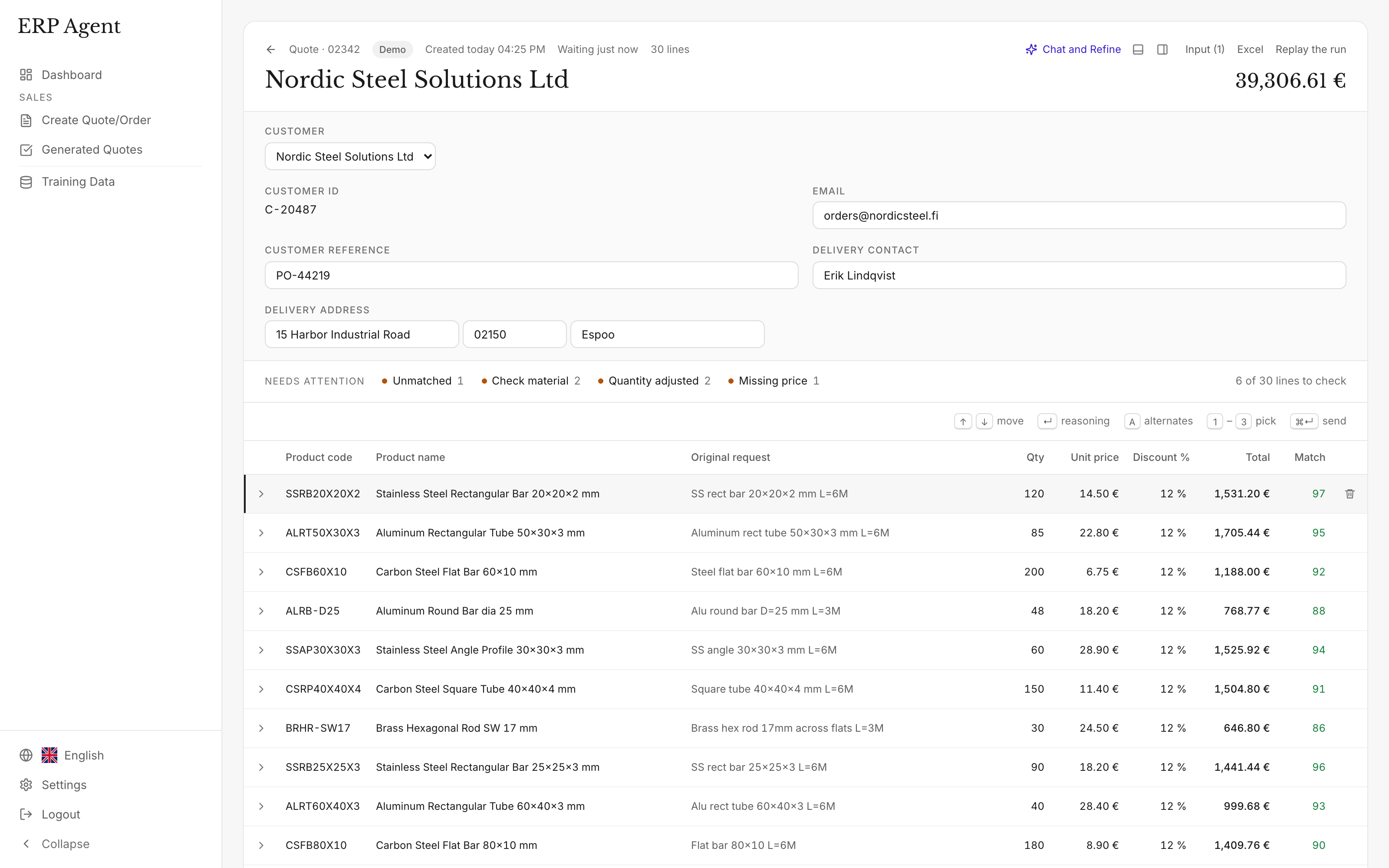
Lines appear in the table as they are matched. The rep checks the marked ones, takes an alternative where needed, makes changes in quote chat and approves.
It is created in Kinetic
Every part is checked against Kinetic first, so a quote or sales order never carries a part Kinetic doesn’t know. A short countdown lets the rep cancel. The lines your team sends teach the agent: the next time a customer writes the same thing, it picks the same part.
Example: an emailed spares list becomes a Kinetic quote
A maintenance planner at a packaging plant emails a spares list to a conveyor components supplier running Kinetic. The rep forwards it to the agent mailbox, which is set to create quotes.
“Please quote the spares below for the October shutdown. PO to follow.”
- 4 x idler roller 89 dia x 600 face, 20 shaft
- 10 m roller chain 16B-1
- 6 x connecting link 16B-1
- 2 x gearmotor 0.75kW 4 pole B5, 40:1
- 8 x our part no. CR-2210
- 1 set guards for the transfer station
| Request line | Proposed Kinetic part | Qty | Match | Note |
|---|---|---|---|---|
| idler roller 89 dia x 600 face, 20 shaft | Idler roller Ø89 × 600 mm face, 20 mm shaft | 4 | 93 | Diameter, face length and shaft match. |
| 10 m roller chain 16B-1 | Roller chain 16B-1, 5 m box | 2 | 91 | 10 m proposed as two 5 m boxes. |
| connecting link 16B-1 | Connecting link 16B-1 | 6 | 97 | Chain size matches the line above. |
| gearmotor 0.75kW 4 pole B5, 40:1 | Worm gearmotor 0.75 kW, 4-pole, B5 flange, ratio 40:1 | 2 | 77 | Output shaft size not stated; marked, with the 30 mm shaft version as the alternative. |
| our part no. CR-2210 | Plummer block housing SN 510 | 8 | 98 | The customer’s own part number, learned from an earlier order. |
| guards for the transfer station | Placeholder part, wording kept | 1 | – | Too vague to identify; the rep decides. |
Illustrative example with sample parts, codes and scores. In a real draft each line also carries the customer’s price from Kinetic.
What the rep sees before anything reaches Kinetic
- A match score from 0 to 100. Lines under 80 are marked, so review starts where judgement is needed. How the match score works.
- Reasoning. Open a line to see why the agent chose that part.
- Alternatives. Runner-up parts are kept for every line; take one instead with a click.
- Quote chat. Add or remove rows or change quantities and prices, then approve or reject each proposed edit line by line.
- Your team stays in control. The rep approves the draft before it is created in Kinetic, and nothing reaches a customer without approval.
Security and control
- GDPR-compliant, zero data retention. ERP Agent is GDPR-compliant, and models run with zero data retention. More on security and data handling.
- Access agreed first. Before setup, we agree which data the agent needs and which systems it can access.
- An API key with its own access scope. Every call to version 2 of the Kinetic REST API carries an API key. The key’s access scope lists the services the agent may reach, and Kinetic refuses anything outside it. The connection also signs in as its own Kinetic user over HTTPS, so your existing user and data security applies to it.
- A person approves. Nothing is written to Kinetic until a rep approves the draft, and nothing reaches a customer without your team.
- Reads, never rewrites. Parts, prices and customer records are read; the agent creates quotes and sales orders and changes nothing else.
Onboarding: what we need from you
We set up the Kinetic connection for your company during onboarding. Your reps don’t wait for it: they start with a catalogue file the same week.
A catalogue export
An export of your parts, for example to Excel or CSV. Reps forward real requests from the first week, reviewing every draft in the web app. See starting from a catalogue file.
An API key and an access scope
Your administrator creates an API key in API Key Maintenance and an access scope that lists only the services we agree. We send the exact list.
A user for the connection
Kinetic pairs the API key with a user sign-in, so the agent gets a Kinetic user account of its own, with the security your team would give a person doing the same work.
Your rules and history
Which company the agent works for, which placeholder part takes lines too vague to identify, which fee rows it adds, and past quotes or Outlook email history, so the agent learns how your customers write.
Live in Kinetic
Once the connection is live, customer prices come from Kinetic and approved quotes and sales orders are created there directly.
ERP Agent in numbers
- 4–7 min
- per line to create quotes and orders by hand, according to our case study
- Over 95%
- average automation across our customers
- 3–8 min
- for the agent to prepare a typical request
- 1–3 min
- in fast mode, for requests of up to about 50 lines
Kinetic today, any ERP tomorrow
ERP Agent integrates with Kinetic, Prophet 21, Eclipse, NetSuite, Business Central, SAP and any other ERP or CRM. We set up the connection for your company during onboarding, and you can start with a catalogue file the same week. Group companies on different systems use the same agent and the same review screen on each. See Epicor Prophet 21, Epicor Eclipse, Infor M3 and all integrations.
ERP Agent is live with steel, HVAC and fastener distributors. What it checks on each line follows your trade: bearing designations and belt profiles for industrial distributors, grades and lengths for steel stockholders, DIN and ISO codes for fastener distributors.
Frequently asked questions
Does ERP Agent work with Epicor Kinetic?
Yes. ERP Agent reads parts, customers and pricing from Kinetic through the Kinetic REST API and creates quotes and sales orders there after a rep approves. We set up the connection for your company during onboarding, and you can start with a catalogue file the same week.
Does it create quotes or sales orders in Kinetic?
Both. In the web app the rep chooses quote or sales order for each request; emails forwarded to the agent mailbox become the record type your company has chosen. For customer purchase orders arriving by email, see purchase order to sales order automation.
Does ERP Agent replace Epicor’s own AI features in Kinetic?
No, it adds a dedicated quote and order agent alongside them. Epicor’s built-in AI features work across Kinetic. ERP Agent is built for wholesale requests: it identifies the right parts from customers’ shorthand in requests of several hundred lines, scores every line from 0 to 100 with its reasoning and alternatives, matches across languages and learns from the lines your team sends.
What does ERP Agent need access to in Kinetic?
Read access to parts, units of measure, customers and pricing, and permission to create quotes and sales orders. Access runs through an API key whose access scope lists only those services, paired with a Kinetic user account, and we agree the scope with you before setup.
Which Kinetic versions does it work with?
Kinetic, and the Epicor ERP 10 releases that include REST API v2, in Epicor’s cloud or on your own servers. The API key and its access scope are created in Kinetic itself.
Where do the prices on a Kinetic quote come from?
From Kinetic: the customer’s price lists and the quantity price breaks on the part, whichever applies. The rep can review and edit any price before sending.
How do we get started?
Book a call and bring a few real requests. You start with a catalogue file the same week, and we set up the Kinetic connection during onboarding. Pricing is a setup fee plus a monthly subscription, with an itemised quote before you start. See pricing.
Related
- AI quote automation for distributors and wholesalers
- RFQ automation for distributors and industrial suppliers
- Order entry automation for distributors: customer POs to sales orders
- ERP integrations for AI quote and order automation, on any ERP system
- Industrial supplies distributor quote automation: from MRO enquiry to reviewed quote
- Quote automation for tool distributors: from tooling enquiry to reviewed quote
Let’s look at your quote workflow
Bring a request from your inbox
Book a 30-minute call with a few real requests; we’ll show how the agent handles them with your parts and what connecting your Kinetic system involves.
- Your requests and product catalogue
- Your pricing and review process
- A clear scope for the next step

Lauri Pelkonen
Founder & CEO
Book a 30-minute call Request a demo by emailOr use the address directly